Sahkarmi › AI agent for Windows
Windows 10 and 11
A free AI agent for Windows 11 and Windows 10
Sahkarmi is a desktop AI agent app built for Windows. Install it like any other program, pick a free or paid AI, and give its coworkers tasks that run on your PC: in their own browsers, in your files and, if you allow it, in your Windows apps.
- Chatbot or agent
- What it does in Windows
- How it works on your PC
- Where it fits
- You stay in control
- First ten minutes
- Get it
- Questions
Chatbot or agent: what changes
A chatbot answers questions; you still copy the answer, open the app and do the work. An AI agent takes the steps itself. Ask a Sahkarmi coworker to compare three suppliers' prices and it opens their sites in its own browser, collects the prices into a sheet in your folder, and tells you what it found and what it could not check. Because it runs on your Windows PC, it can work with the files, folders and programs you already use every day.
What it does in Windows
Uses your desktop apps
With the Control this PC permission a coworker can start apps, switch windows, read a window's buttons and fields through Windows UI Automation, click, scroll, drag, type and press shortcuts. Details
Has its own browser
Each coworker browses in its own profile and stays signed in to its own accounts, separate from Edge, Chrome and the other coworkers.
Works in folders
Each coworker has a working folder, and the team shares one Shared folder. Knowledge bases index your documents on this PC.
Runs on a schedule
Routines run hourly, daily, on weekdays or weekly while Sahkarmi is open.
Asks first
Posting, sending, submitting and paying wait for your approval in the app or on Telegram.
Speaks your language
English, हिन्दी and বাংলা, with more Indian languages partly translated.
How it works on your PC
- The app runs on Windows; the AI model runs at the provider. Sahkarmi sends each step to the AI you pick (the free built-in models, or your own Claude, ChatGPT or Gemini plan) and carries out the answer on your PC.
- Windows apps through UI Automation. Most Windows programs describe their buttons, menus and fields to Windows. A coworker reads that list, so it can press “Save” by name instead of guessing a screen position; for apps that do not describe themselves it can fall back to a screenshot and a position.
- A separate browser per coworker. Sign-ins stay inside that coworker's browser profile. Press Take over to type a password or an OTP yourself.
- Plain files as results. Sheets, documents and reports are saved in the coworker's folder or the Shared folder, so you can open, check and keep them with the tools you already have.
- One team. Coworkers hand work to each other, and one goal can be split between several of them.
Where it fits
Work that has clear steps and ends in a file is the best start:
- GST working papers and 2B matching, with the AI GST Accountant.
- Voucher sheets for Tally or Zoho Books from bills and bank statements, with the AI Bookkeeper.
- Lead and quotation follow-ups, drafted for your approval, with AI Sales Follow-up.
- Market and supplier research with sources, with the AI Research Analyst.
See all ready-made coworkers or use cases by profession.
You stay in control
- Control this PC is set to ask by default, so the first desktop step waits for you.
- Sending, posting, submitting and paying always wait for an approval card.
- Your coworkers, chats and files stay on this computer. Sahkarmi has no cloud account of its own.
- How well a task goes depends on the app, the site and the AI model, so start with a small task and check the result.
The first ten minutes
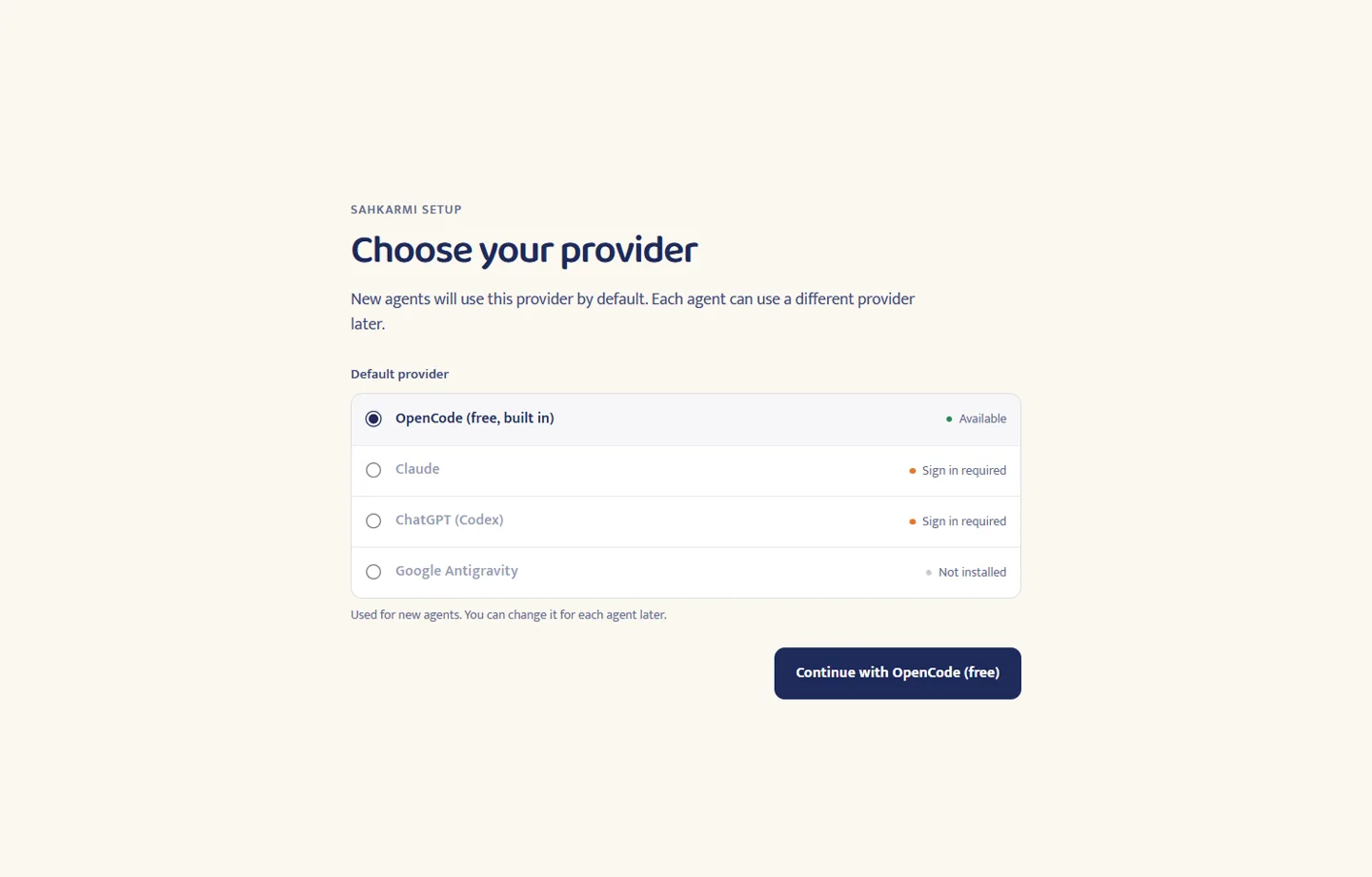
- Install and open Sahkarmi. Keep OpenCode (free, built in) selected, or connect Claude, ChatGPT (Codex) or Google Gemini (Antigravity) in Settings, AI and models.
- Open a coworker from the list on the left, for example the research coworker, and type a small task: “Find three free project-management tools and compare their limits in a table.”
- Watch its browser on the right. Use Take over if it needs you to sign in somewhere.
- To let it work in desktop apps, set Settings, Permissions, Control this PC to ask (the default) and approve its first desktop step.
- Answer approval cards as they come. Then try a routine: “Every weekday at 9, …”.
Get it
Sahkarmi needs Windows 10 or 11, 64-bit, and an internet connection. One download, free, no account:
Need help after downloading? The install guide walks through setup step by step.
Questions
Is there a free AI agent for Windows 11?
Yes. Sahkarmi is free and open source (Apache 2.0) and runs on Windows 11 and Windows 10, 64-bit. It includes free AI models, so you can use it without a paid AI subscription.
How is an AI agent different from an AI chatbot?
A chatbot answers in a chat window and you do the work. An AI agent does the steps itself: it opens sites in its own browser, reads and writes files, and, if you allow it, uses your Windows apps, then reports what it did and what is still open.
Can it use apps like Excel or a desktop accounting program?
With the Control this PC permission a coworker can operate Windows apps through their buttons, menus and fields, or by screenshot and position. How reliably it completes a task depends on the app and on the AI model you connect, so start small and check the result.
Do my files leave my PC?
Your files stay in folders on your computer. Sahkarmi has no cloud account of its own; the parts of a file a task needs go only to the AI provider you choose, as part of that task.
Sahkarmi is free and open source (Apache 2.0). No account, no card. Windows 10 and 11, 64-bit.
Download Sahkarmi for Windows